Disclosure: This article contains an affiliate link. If you sign up or purchase through it, I may earn a commission at no additional cost to you. Prices and features can change, so verify the current details before subscribing.
Table of Contents
ToggleAI voice generators used to be easy to recognize: the pacing was flat, pauses landed in strange places, and every sentence sounded disconnected from the next. ElevenLabs is popular because it can produce far more natural speech while still giving creators control over the voice, delivery, language, and output.
That does not mean every generation will sound perfect. A good result still depends on the script, the selected voice, the model, and a few settings that are easy to overlook.
This guide shows the complete beginner workflow: generate a short voiceover, choose and tune a voice, create a voice clone responsibly, produce longer narration in Studio, and translate a video with AI dubbing.
What Is ElevenLabs?
ElevenLabs is an AI audio platform with tools for text to speech, speech to text, voice design, voice cloning, sound effects, music, long-form production, and dubbing.
For a beginner, the most useful tools are:
- Text to Speech: turn a written script into spoken audio;
- Voice Library: find voices by language, accent, age, style, or use case;
- Voice Cloning: create a reusable voice from authorized recordings;
- Studio: organize longer work such as videos, podcasts, courses, or audiobooks;
- Dubbing: translate audio or video while preserving timing and speaker characteristics.
You can test the platform with the Free plan. At the time of writing, it includes 10,000 monthly credits. The Starter plan is the first paid tier that includes a commercial license and Instant Voice Cloning. Always check the current ElevenLabs pricing page before choosing a plan.
Step 1: Create an Account and Open Text to Speech
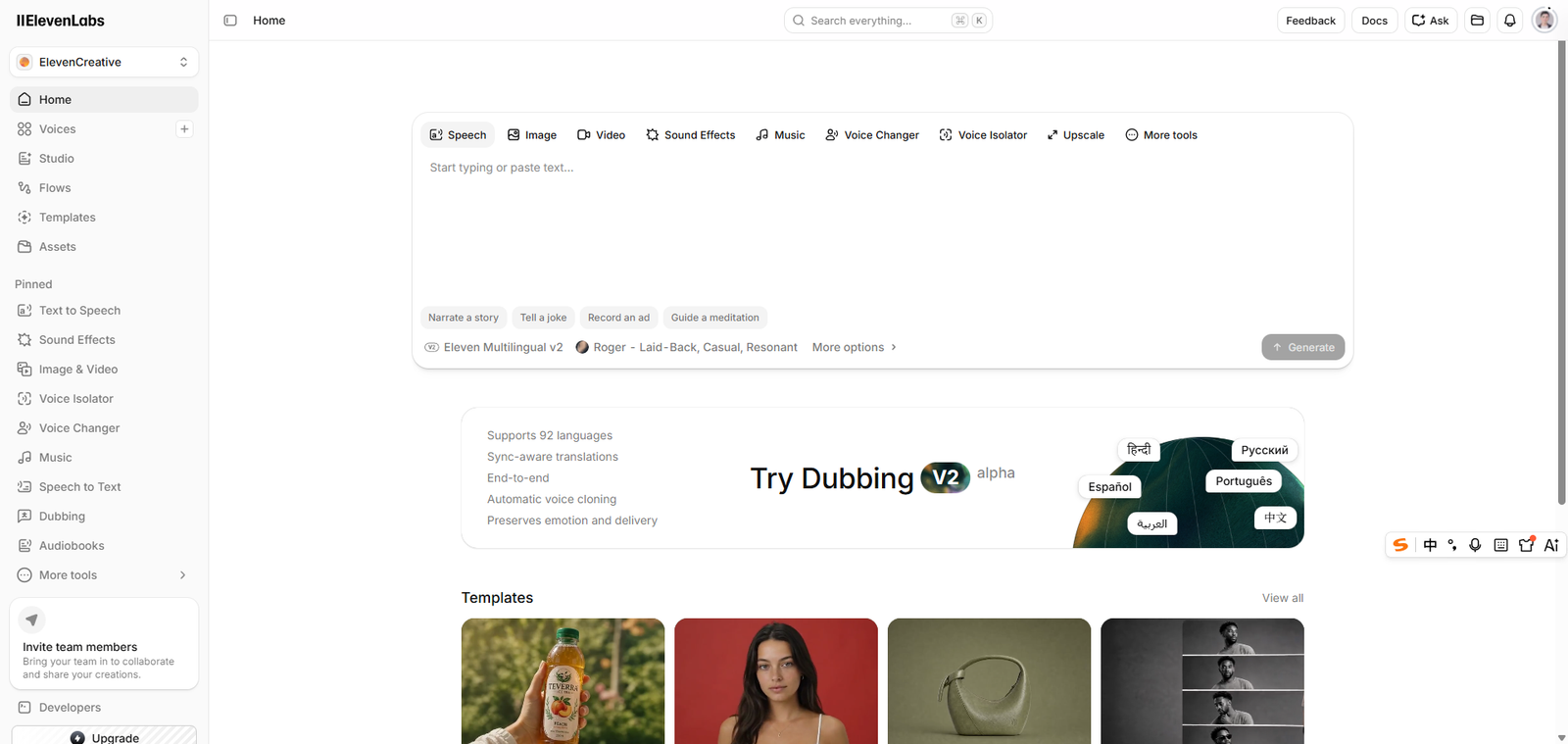
Open ElevenLabs, create an account, and enter the main workspace. The interface may change over time, but the basic workflow remains simple:
- Open Text to Speech or Speech Synthesis.
- Paste a short script into the text box.
- Select a voice.
- Choose a model.
- Generate a preview.
- Download the finished audio when you are satisfied.
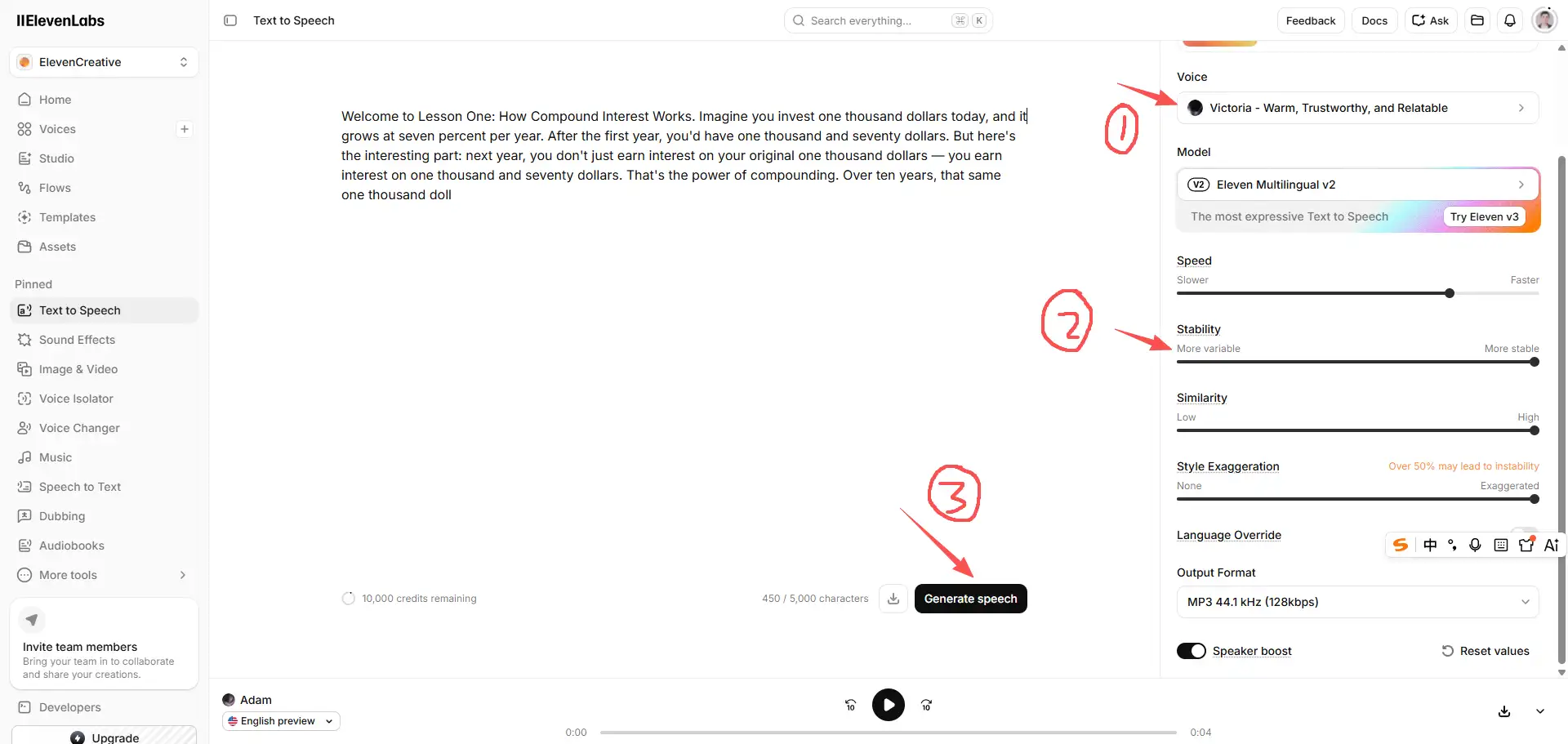
examples:
Start with two or three sentences, not an entire article. A short test lets you compare voices and settings without spending credits on a long generation that you may discard.
Step 2: Write a Script That Sounds Natural When Spoken
Text written for reading is not always good text for listening. Long sentences, dense lists, and abrupt topic changes can make even a strong AI voice sound unnatural.
Before generating audio:
- shorten long sentences;
- use paragraphs to separate ideas;
- add punctuation where a speaker should pause;
- spell out unusual abbreviations when necessary;
- test names, brands, and technical terms separately;
- remove headings or notes you do not want the voice to read aloud.
For example, this is visually clear but may sound rushed:
Our platform helps creators write, edit, translate, publish, analyze, and repurpose content across multiple channels.
A spoken version gives the listener more room:
Our platform helps creators produce content faster. You can write and edit a script, translate it, and then repurpose it for different channels.
The goal is not to make every sentence short. It is to create a rhythm that sounds intentional.
Step 3: Choose the Right Voice
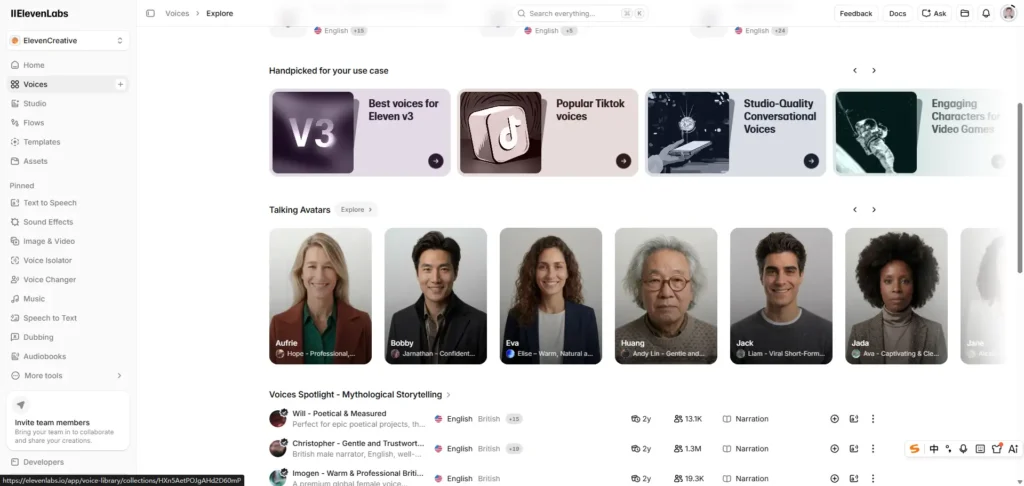
The Voice Library contains many voices, so choosing by name alone can waste time. Begin with the job the voice needs to perform.
Ask four questions:
- Who is listening? A software tutorial, children’s story, product advertisement, and audiobook need different deliveries.
- Which language and regional accent fit the audience? The written language influences what is spoken, while the chosen voice strongly affects accent and pronunciation.
- Should the delivery feel calm, conversational, authoritative, energetic, or dramatic?
- Will this voice be used once or across a series? Consistency matters more for courses, channels, and recurring podcasts.
Preview several voices with the same short paragraph. Changing both the script and the voice at the same time makes comparison difficult.
Step 4: Adjust the Voice Settings
The exact controls can vary by model, but beginners will commonly see settings for speed, stability, similarity, style, or speaker enhancement.
Speed
ElevenLabs currently allows text-to-speech speed adjustments from 0.7 to 1.2. Start near 1.0. Slower is useful for complex teaching material, while a slightly faster delivery may suit short social content. Extreme values can reduce naturalness.
Stability
Higher stability generally makes delivery more consistent. That can help with long tutorials, but pushing it too high may remove useful variation. Lower stability can sound more expressive, although results may become less predictable.
Similarity
Similarity controls how closely the output follows the characteristics of the selected or cloned voice. A higher setting is not automatically better. Listen for clarity, artifacts, and natural pronunciation rather than judging the slider alone.
Style or expressiveness
Use stronger expression only when the content needs it. A dramatic delivery may work for a story or advertisement but feel distracting in software training.
A sensible starting approach is to keep the defaults, generate one short sample, and change only one setting at a time. Save the settings that work so future sections remain consistent.
Step 5: Generate, Review, and Download the Audio
Click Generate and listen with headphones before downloading. Pay special attention to:
- the first and last word of each sentence;
- names and technical terms;
- pauses around commas and paragraph breaks;
- emotional consistency;
- sudden changes in volume or accent;
- background artifacts or clipped sounds.
If one sentence is wrong, edit and regenerate the smallest practical section instead of repeatedly generating the complete script. This is especially important because credits are charged when you generate, not when you download.
When the result is ready, download an appropriate format. MP3 is convenient for most videos and blog audio players. WAV or higher-quality options are useful when the file will be edited, mixed, or mastered later, although some formats and quality levels require a paid plan.
Listen to My ElevenLabs Audio Test
I recorded this sample while testing the workflow described above. Listen for pacing, pronunciation, pauses, and consistency rather than judging only the first few seconds.
Step 6: Clone Your Voice Responsibly
Voice cloning is useful when you want a consistent personal narration voice without recording every final script. ElevenLabs offers Instant Voice Cloning for quick creation from shorter samples and Professional Voice Cloning for higher-fidelity use with more training audio.
Only clone your own voice or a voice for which you have clear permission. Do not upload a creator, celebrity, employee, customer, or family member’s recording simply because it is publicly available.
For a cleaner clone:
- record in a quiet, non-echoing room;
- use one speaker only;
- avoid background music and noise reduction artifacts;
- keep the microphone distance consistent;
- speak naturally rather than exaggerating every word;
- include the range of tone and pacing you expect the clone to reproduce.
The platform may require you to confirm that you have the right to clone the voice. Treat that as a real consent requirement, not a checkbox to bypass.
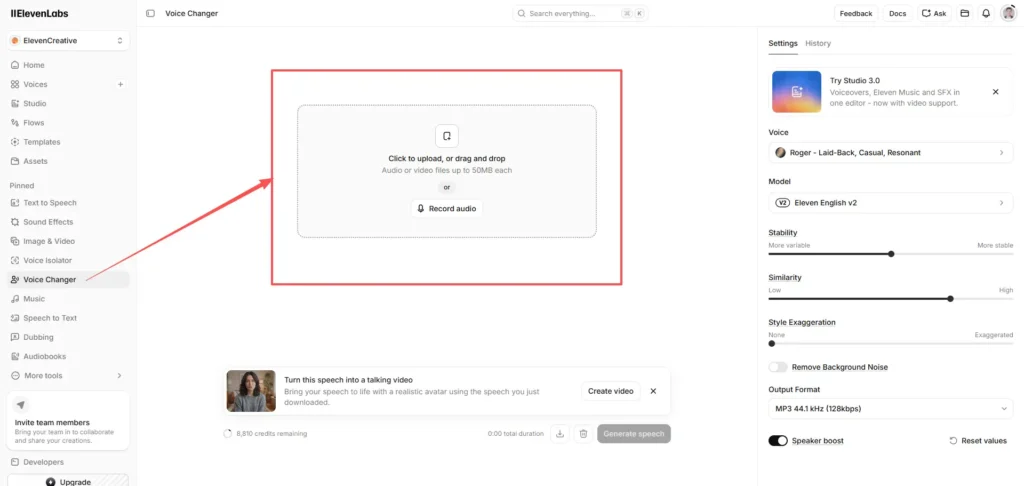
Step 7: Use Studio for Long-Form Narration
Generating a ten-minute script as one block makes revisions expensive and difficult. Studio is better suited to longer projects because you can organize content into sections, maintain a consistent voice, and regenerate only the parts that need work.
A practical workflow is:
- Clean and finalize the script before importing it.
- Divide the content into logical chapters or scenes.
- Assign the intended voice or voices.
- Generate a short section and approve the sound.
- Produce the remaining sections.
- Review transitions, pronunciation, and volume.
- Export only after the complete project has been checked.
For a course or audiobook, create a pronunciation list before production. Correcting recurring names after every chapter has been generated wastes both time and credits.
Step 8: Add Multiple Speakers
Multiple voices can make interviews, training scenarios, stories, and podcast-style content easier to follow. The important part is not the number of voices; it is whether listeners can distinguish the speakers without being distracted.
Use contrasting but compatible voices. If one speaker is calm and low-pitched, a second speaker with a clearer, lighter delivery may be easier to recognize than another voice with nearly identical characteristics.
Keep speaker labels in your working script, but make sure those labels are not accidentally included in the spoken text. Generate a short exchange first and check whether the conversational timing feels natural.
Step 9: Dub a Video Into Another Language
ElevenLabs Dubbing can accept an uploaded audio or video file, as well as supported online video links. The current system can translate into more than 90 languages, detect multiple speakers, and preserve background audio while recreating the dialogue.
The beginner workflow is:
- Open Dubbing.
- Upload a file or paste a supported URL that you are authorized to use.
- Confirm the source language.
- Select one or more target languages.
- Review the estimated credit cost.
- Generate the dub.
- Check the translation, timing, pronunciation, and speaker assignment.
- Download the approved result.
Automatic dubbing is fast, but it is not a substitute for language review. For customer-facing or paid content, ask a fluent speaker to check names, idioms, technical terms, and cultural context.
Which ElevenLabs Plan Should a Beginner Choose?
As of August 2026, the main monthly plans shown by ElevenLabs are:
| Plan | Monthly price | Included credits | Best starting use |
|---|---|---|---|
| Free | $0 | 10,000 | Testing short generations and learning the interface |
| Starter | $6 | 30,000 | Commercial use, Instant Voice Cloning, and small creator projects |
| Creator | $22 | 121,000 | Frequent content production and Professional Voice Cloning |
| Pro | $99 | 600,000 | Higher-volume production and higher-quality output options |
Taxes may be additional, promotional pricing may apply, and the contents of each plan can change. Free-plan output is useful for testing, but the current Starter plan is the first tier that explicitly includes a commercial license. Verify the terms for your particular use before publishing or selling content.
Common Beginner Mistakes
Generating the full script before testing
Test a representative paragraph first. It should contain a name, a longer sentence, and the emotional tone used in the rest of the project.
Trying to fix delivery with sliders alone
Sometimes the script is the problem. Rewrite awkward sentences and add punctuation before pushing settings to extremes.
Changing several settings at once
Change one variable, compare the output, and keep a simple note of the winning configuration.
Ignoring commercial rights
Free access does not automatically mean every output can be used in paid client work, advertisements, or monetized content. Check the current plan terms.
Cloning a voice without consent
A voice recording found online is not permission to clone it. Use your own voice or obtain explicit authorization.
Publishing a dub without language review
AI can produce convincing audio even when a translation is slightly wrong. Natural sound should not be mistaken for factual or linguistic accuracy.
Is ElevenLabs Worth It?
ElevenLabs is a strong option for creators who need natural-sounding narration, repeatable voices, long-form production, or multilingual versions of existing content. Its biggest advantage is not one impressive sample; it is the ability to build a reusable audio workflow around scripts, voices, and revisions.
The Free plan is enough to learn the interface and compare results. If you plan to use the audio commercially or clone a voice, the Starter or Creator plan is the more relevant place to compare features.
The best first project is small: write a 30-second script, generate it with three voices, adjust one setting at a time, and use the result in a short video. That test will tell you more than listening to polished demonstrations made by someone else.
Frequently Asked Questions
Can I use ElevenLabs for free?
Yes. At the time of writing, the Free plan includes 10,000 monthly credits and access to several creative tools. It is intended as a practical way to test the platform, but it does not include every paid feature or the Starter plan’s commercial license.
Can ElevenLabs speak Chinese and other languages?
Yes. ElevenLabs supports multilingual speech, although language coverage depends on the model. Select a voice whose accent fits the intended audience and test pronunciation before producing a long project.
Can I clone my own voice?
Yes. Instant Voice Cloning uses shorter samples for quick results, while Professional Voice Cloning is designed for higher fidelity and requires more training audio. Availability depends on the plan.
Can I use ElevenLabs for YouTube videos?
The tools can be used to create narration and dubbed audio for videos, subject to the plan’s commercial rights and the rights to the scripts, voices, music, and footage involved. YouTube monetization also depends on the originality and value of the complete video, not only the voice source.
Does ElevenLabs automatically translate videos?
Yes. Its dubbing workflow can translate supported audio and video into many languages while attempting to preserve timing, speaker identity, and background audio. Important content should still be reviewed by a fluent speaker.
Final Thoughts
The fastest way to get good results from ElevenLabs is to treat AI voice generation as production, not as a one-click trick. Start with a script written for listening, test the voice on a short passage, change settings carefully, and review every final file before publishing.
Once that basic workflow is reliable, voice cloning, Studio, multiple speakers, and dubbing become useful extensions rather than confusing extra features.
Official Sources and Further Reading
Editorial note: Product details and prices were checked on August 9, 2026. This guide is independently written from a beginner workflow and official product documentation; it is not a transcript or reproduction of another creator’s tutorial.