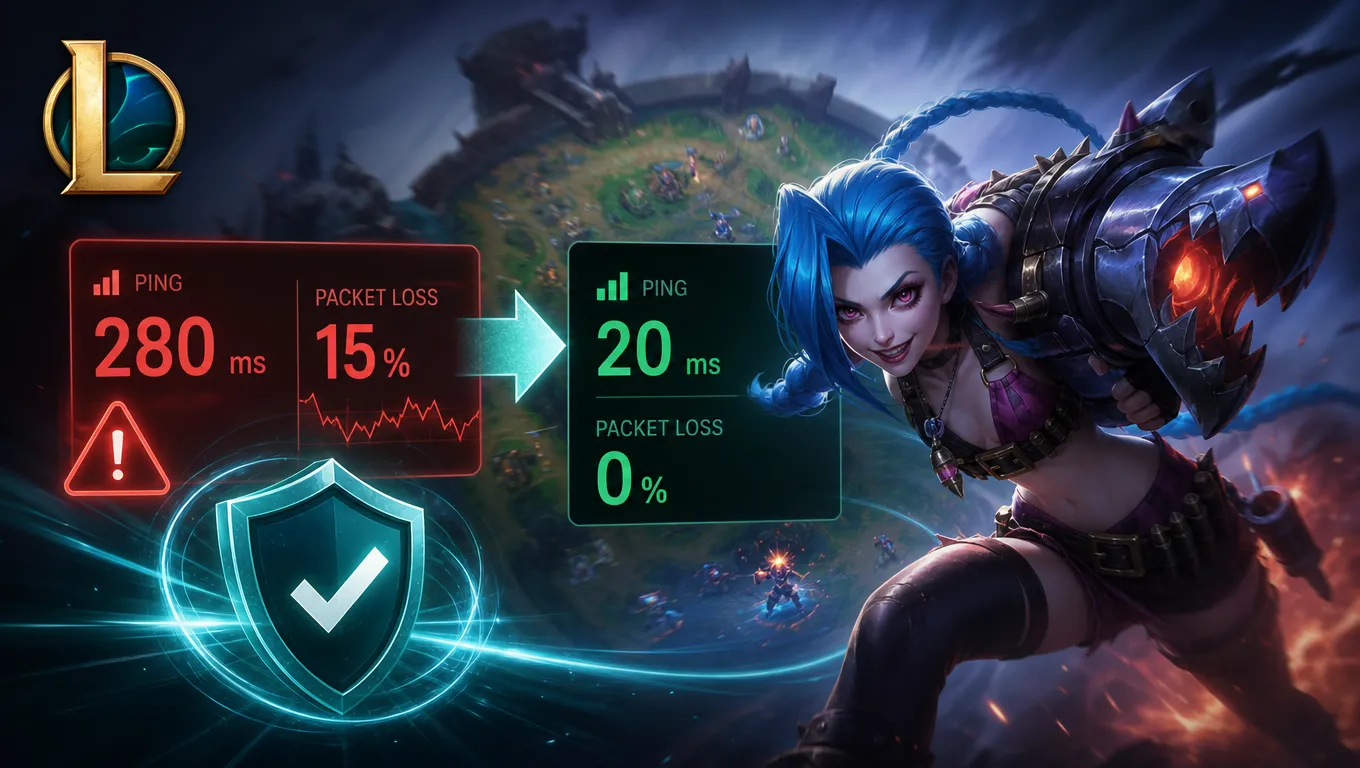
Few things are more frustrating in League of Legends than pressing an ability at the right moment only to see it activate too late. High ping, sudden latency spikes, and packet loss can make last-hitting harder, delay skillshots, and turn an otherwise winnable teamfight into a frustrating defeat.
Table of Contents
ToggleA fast internet plan does not always guarantee a smooth match. Your connection may perform well during a regular speed test while still taking an inefficient or congested route to the League of Legends server.
This guide explains what may cause high ping in League of Legends, which fixes are worth trying, and when a game connection optimizer such as GearUP may help.
What Does Ping Mean in League of Legends?

Ping measures how long it takes data to travel from your device to the game server and back. It is displayed in milliseconds (ms).
A lower and more stable number generally produces a more responsive experience. However, consistency matters as much as the average. A connection that stays near 50 ms may feel better than one that repeatedly jumps between 25 ms and 120 ms.
The effects of unstable latency can include:
- Delayed champion movement
- Abilities activating later than expected
- Difficulty last-hitting minions
- Skillshots appearing out of sync
- Rubber-banding or sudden position changes
- Brief freezes and reconnection messages
These symptoms can have different causes, so it is important to identify where the problem begins before choosing a solution.
Why Is Your League of Legends Ping So High?
1. You Are Playing on a Distant Server
Physical distance creates unavoidable latency. If your League of Legends account is connected to a region far from your location, every action must travel a longer distance before reaching the server. No setting can completely remove this physical limitation. When possible, use the region intended for your location.
2. Your Wi-Fi Connection Is Unstable
Wi-Fi can be affected by walls, nearby devices, router placement, and interference from other wireless networks. You may experience short but disruptive spikes during a match. An Ethernet connection is normally the simplest way to determine whether Wi-Fi is contributing to the problem.
3. Other Devices Are Using the Connection
Downloads, video streaming, cloud backups, operating-system updates, and uploads from other household devices can compete with League of Legends traffic. Upload activity can be especially disruptive and may create delay and packet loss.
4. Your ISP Is Using a Congested Route
Internet traffic does not always take the shortest or most efficient path to a game server. Your ISP may route the connection through congested network nodes, particularly during peak hours. This can explain why the game lags even when websites load quickly and speed-test results look normal.
5. Background Software Is Consuming Resources
Game launchers, file-syncing services, browsers, security scans, and automatic updates may continue transferring data while you play. Before entering a ranked match, close unnecessary programs and pause downloads.
6. The Game Server Has a Temporary Issue
Sometimes the problem is not on your side. Maintenance, server disruption, or regional network incidents may affect many players simultaneously. If the problem begins suddenly, check whether other players in your region are reporting similar symptoms.
Fix the Local Connection First
Start with the parts of the connection you can directly control. Connect your computer to the router with an Ethernet cable if possible. Pause downloads, streaming, cloud synchronization, and updates on your computer and other devices. Restart the router if it has been running continuously for a long time, and make sure its firmware is current.
Update your network adapter driver and close unnecessary background applications before launching League of Legends.
Avoid assuming that lower graphics settings will reduce ping. Graphics settings affect frame rate and rendering performance, while ping is primarily a network measurement. Lowering visual quality may help hardware-related stuttering, but it usually will not repair a poor route to the server.
Test One Change at a Time
The best way to troubleshoot latency is to create a controlled comparison. Test your normal connection and record average ping, major spikes, and packet loss. Repeat after switching to Ethernet, then test again after stopping downloads and other household traffic.
Use the same League of Legends region and a similar time of day for each test. Changing several settings at once makes it difficult to identify which change helped.
| Change | May improve | Usually cannot solve |
|---|---|---|
| Switching to Ethernet | Wi-Fi interference and packet loss | Long server distance |
| Stopping downloads | Local congestion | Inefficient ISP routing |
| Closing background apps | Resource competition | Regional server incidents |
| Lowering graphics | Frame rate | Network latency |
| Route optimization | Congested network paths | Weak local Wi-Fi |
If Ethernet and a quiet home network solve the spikes, the issue was probably local. If only League of Legends remains unstable, the route between your ISP and the game server may be contributing to the problem.
When a Game Connection Optimizer May Help
After ruling out Wi-Fi interference, background downloads, and local congestion, you can test a game connection optimizer.
GearUP is designed to select an alternative game-specific network route. For League of Legends players, this may help when the default route supplied by the ISP is congested, unstable, or unnecessarily indirect.
The software is intended to optimize the connection route. It does not change League of Legends gameplay, champion statistics, or graphics performance.
Results can vary depending on your location, ISP, server region, and original connection quality. Compare your connection before and after enabling the service instead of assuming that every network will improve in the same way.

After installing the application, select League of Legends and the appropriate server or region. Start the connection optimization before opening the game, then compare live ping, major spikes, and packet loss with your earlier baseline. Continue using the optimized route only if the same server becomes noticeably more stable during comparable tests.
A routing tool may help with inefficient transit paths, congestion between networks, or instability on the way to a game server. It cannot repair every possible source of lag.
GearUP is unlikely to solve:
- Weak Wi-Fi inside your home
- A damaged Ethernet cable
- Downloads saturating your connection
- Low frame rate caused by computer hardware
- A League of Legends server outage
- Delay created by extreme physical distance
Treat it as one layer of troubleshooting rather than a universal fix. A reliable setup combines a stable local connection, minimal background traffic, an appropriate server region, and an efficient network route.
A Practical Pre-Match Checklist
Before starting a ranked game:
- Use Ethernet whenever possible.
- Pause downloads, uploads, streams, and cloud backups.
- Close unnecessary launchers and browser tabs.
- Confirm that you selected the correct League of Legends region.
- Check whether the game servers are experiencing a known problem.
- Record your normal ping before testing routing software.
- Test GearUP under the same conditions and compare the results.
This process gives you useful evidence instead of relying on a single speed test or one unusually good match.
Final Thoughts
High ping in League of Legends can come from several layers of the connection. Wi-Fi interference, household traffic, server distance, ISP congestion, and inefficient routing can all produce similar symptoms.
Begin with the free fixes: use Ethernet, stop background traffic, select the appropriate region, and test under controlled conditions. If League of Legends remains unstable while the rest of your connection works normally, an alternative game-specific route may be worth testing.
Disclosure: This article contains affiliate links. If you purchase a product or subscription through one of these links, we may receive a commission at no additional cost to you. Results may vary according to location, internet provider, server region, and local network conditions.