Based on public documentation and networking research. Last checked: 24 August 2026. No first-hand lab test was performed for this guide, so every step below is written so you can run it yourself and see the result on your own network.
Table of Contents
ToggleYou created the room. You can see it. Your friend cannot. Or they see it, click join, and the game sits on a loading screen until it gives up.
Most guides answer this by explaining what a LAN game is. That rarely helps, because by the time you are searching, you already know something is blocked — you just don’t know where. So this guide does the opposite. It gives you an elimination order: four layers, tested from cheapest to most expensive, so you stop guessing and only change the one thing that is actually broken.
Start here: match your symptom
| What you see | Most likely layer | Go to |
|---|---|---|
| Room never appears for anyone else | Layer 2 — discovery | Layer 2 |
| Room appears, joining times out | Layer 3 — inbound reachability | Layer 3 |
| Only some friends can join | Layer 3 — their side or yours | Layer 3 |
| Everyone joins, then drops mid-match | Layer 4 — link quality | Layer 4 |
| Different host, different result | Layer 3, confirmed | Layer 3 |
| Game shows a version or mod error | Layer 1 — the game itself | Layer 1 |
Work downward. Do not skip Layer 1, even if you are sure it is a network problem — it costs two minutes and it is wrong surprisingly often.
The four-layer model
A LAN session has to survive four separate checks. Any one of them can fail silently and produce the same vague result: "can’t find game".
- Layer 1 — The game. Same build, same mods, same lobby mode, LAN discovery still supported.
- Layer 2 — Discovery. Can the machines see each other as being on one local network at all?
- Layer 3 — Inbound reachability. Once found, can the host actually accept an incoming connection?
- Layer 4 — Link quality. Once connected, is the path stable enough to hold a match?
Most failed LAN parties die at Layer 2 or Layer 3. Almost nobody checks Layer 1 first, and almost everybody blames Layer 4 too early.
Layer 1: rule out the game in two minutes
Before touching any network setting, confirm the game is even capable of doing what you are asking.
- Build match. Every player needs the identical version. One pending update on one machine is enough to hide a room.
- Mod match. Mod lists must be identical, including load order where the game cares.
- Correct lobby mode. Some titles separate "LAN", "local", "co-op" and "private online" into different menus that behave differently.
- Store edition. Copies from different stores frequently cannot see each other, even at the same version number.
- Feature still exists. LAN discovery has quietly been removed or reworked in plenty of titles. Check the game’s own patch notes rather than assuming.
If any of these differ, fix that first. No network tool can bridge two games that refuse to talk to each other.
Layer 2: discovery — are you even on the same network?
This is the layer most people misjudge.
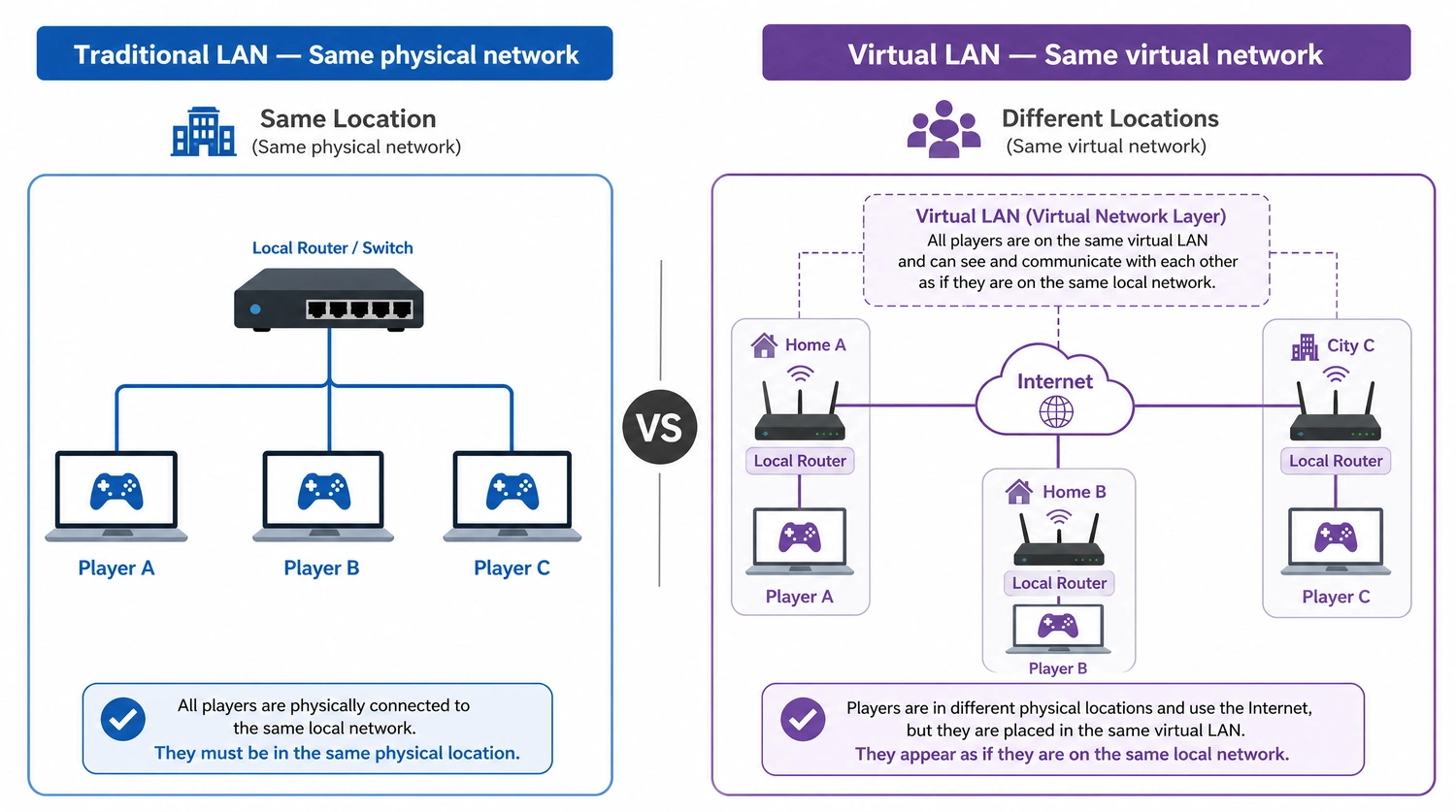
LAN discovery works by broadcasting on a local network segment. Devices behind the same router usually hear each other. Devices in different homes, different cities, or on different ISPs do not — not because anything is broken, but because there is no shared local segment to broadcast into. Having working internet on both ends is unrelated.
Test it
- Same-router test. If two players are in one house, put both on the same router and try again. Room appears? Discovery works, and your remote problem is a Layer 2 issue, not a game issue.
- Check for network isolation. Guest networks, campus and office networks, dorm Wi-Fi and many hotel networks deliberately block device-to-device traffic. Your own devices will not see each other even in the same building.
- Check band and VLAN split. Some routers separate 2.4 GHz, 5 GHz, or IoT SSIDs into isolated segments. Put every player on one SSID before concluding anything.
What actually solves remote play
To play with people in other locations, you need a shared virtual network layer — a virtual LAN — so the game sees remote devices as if they were local. That is a real requirement, not an upsell: without it, the game has nothing to broadcast to.
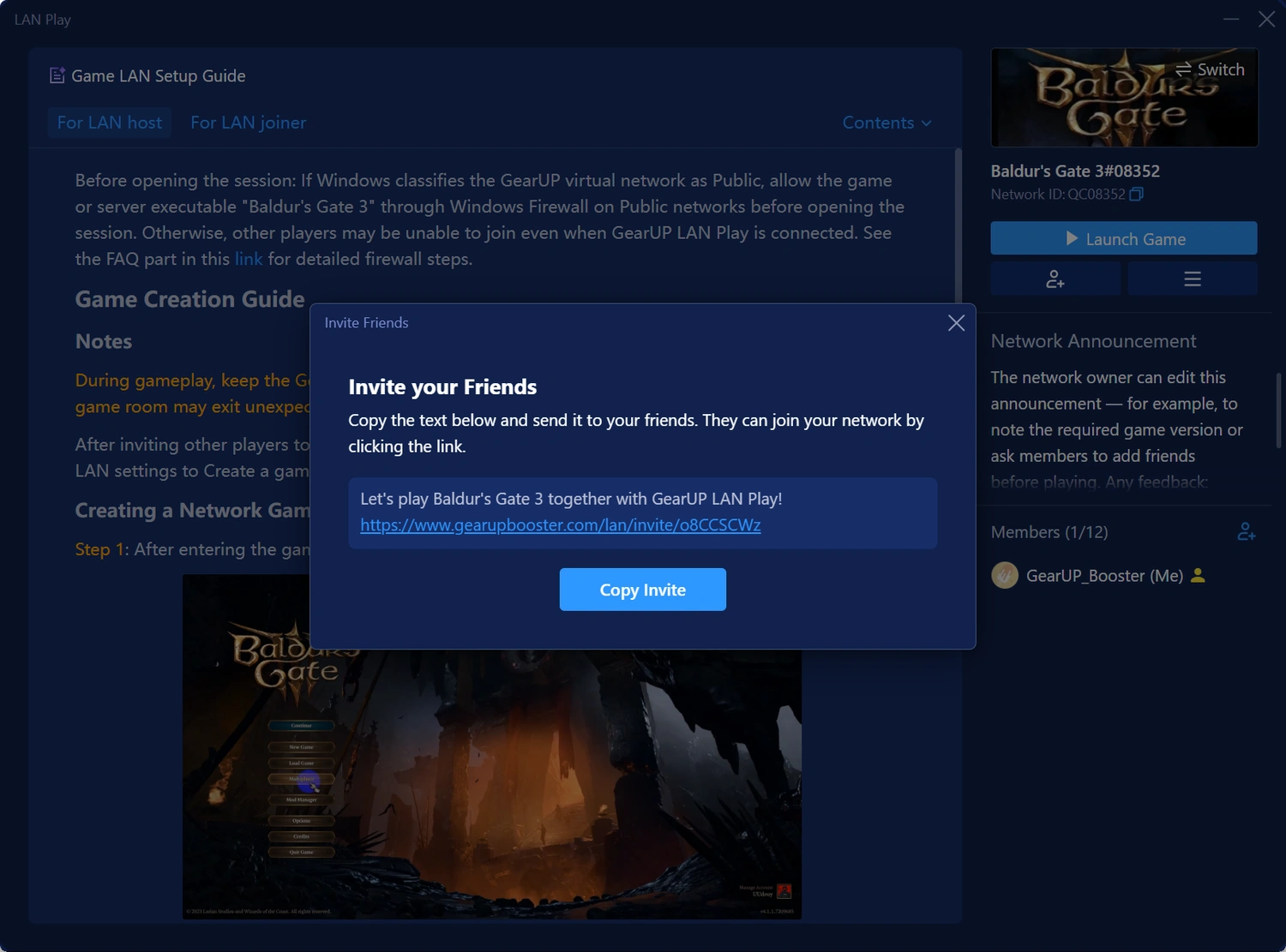
GearUP added a dedicated LAN Play feature for exactly this: you create a private GearUP network, invite friends, and supported LAN games can then discover each other across locations. According to GearUP’s own materials, LAN Play is offered free, and the feature was announced publicly in August 2026. That is the vendor’s description of its own product — whether your specific game discovers the room still depends on how that game implements LAN.
The link below is an affiliate link — full disclosure at the bottom of this page.
Confirmed your problem is Layer 2?
Create the network, get everyone on it, then check whether the room becomes visible before changing anything else.
Important limit: a virtual LAN fixes visibility. It does not force a game to accept a connection, and it cannot repair a broken route. If the room now appears but joining still fails, you have moved to Layer 3 — which is progress, not failure.
Layer 3: inbound reachability — the join itself
This is where "they can see it but can’t get in" lives.
Hosting means accepting an incoming connection. Your router translates private addresses to one public address, and by default it is cautious about traffic nobody asked for. When that caution is too strict, the room is visible and the join still dies.
The host-swap test
Run this before changing any setting. Have a different player host the same session.
- Works with a new host: the restriction is on the original host’s network. Fix it there, or simply keep hosting from the player whose network cooperates.
- Fails with every host: the problem is shared — the tool, the game’s join flow, or a restriction all of you have in common.
This single test saves more time than any router tweak, and it costs nothing.
What to check on the host's network
| Condition | Typical effect | What you can do |
|---|---|---|
| Restrictive NAT | Rooms visible, joins fail or time out | Enable UPnP, or forward the ports the game documents |
| Double NAT | Inbound connections blocked at an extra layer | Put the ISP box in bridge mode, or run one router only |
| CGNAT | No usable public inbound path | Ask the ISP about a public IP, or host from another player |
| Firewall or antivirus block | Only the host’s sessions fail | Allow the game and the network client explicitly |
| Blocked ports | Consistent, repeatable failure | Confirm the game’s documented ports |
Two practical notes. First, Double NAT is common and easy to miss — it happens whenever an ISP gateway and your own router are both routing. Second, NAT has nothing to do with speed. A gigabit line with restrictive NAT still blocks the join, which is exactly why speed tests mislead people here.
If your router settings are locked, unavailable, or you are on a network you don’t administer, this layer may not be fixable by hand. Router-level and console-level tooling exists for that case — GearUP’s router app, for example, states that it optimizes NAT alongside routing, and ASUS documents enabling GearUP Console Booster on selected router models with a free trial in specific regions. Treat both as vendor descriptions and verify the model list and regional availability before buying hardware.
Layer 4: link quality — you got in, then it fell apart
Only reach this layer if the join succeeds. Then the question changes from "can we connect" to "can we stay connected".
Watch four signals during real play, not during a download:
- Latency spikes rather than a high average
- Packet loss, where even 1–2% repeating is a warning
- Jitter, meaning the ping keeps jumping between values
- Correlation: does the stutter line up with the numbers, or is it frame drops?
Cheap fixes first: move everyone off congested Wi-Fi, use a wired connection where possible, stop background downloads and cloud sync, and retest at a different hour. Shared, dorm, hotel and cafe networks degrade predictably in the evening.
Route optimization belongs here — and only here. It addresses path quality and loss. It does not raise frame rates, fix a weak Wi-Fi signal, or repair a game’s own netcode.
Skip the tools if this describes you
Be honest about which of these applies before paying for anything.
- Everyone is already on one router. You have a game-layer or firewall problem, not a distance problem.
- The game removed LAN discovery. No virtual network restores a feature the developer deleted.
- You only need a private online lobby. If the game already offers invite-based online play, use it.
- The join fails from every host on every network. Fix the game and firewall layers first.
- Your connection is already stable and local. Layer 4 tooling has little left to improve.
FAQ
Why can my friend see the room but not join it?
Discovery and connection are separate steps. Visibility means Layer 2 is working; a failed join points to Layer 3 — usually NAT, a firewall, or blocked ports on the host’s side.
Does a virtual LAN guarantee we can play?
No. It creates the shared network layer the game needs to discover peers. Whether the session then connects depends on the game, the host’s NAT, and firewall rules.
Is my internet speed the problem?
Rarely, for joining. Speed governs throughput; joining depends on reachability and routing. A fast line with restrictive NAT still blocks the connection.
Should I just enable UPnP?
It is the easiest first attempt because the game can request its own ports. It is not universally reliable, some routers implement it poorly, and it does not help behind CGNAT.
Why does changing the host fix everything?
Because hosting requires accepting inbound connections. If one player’s network allows that and another’s does not, host from the network that cooperates.
Will this reduce my ping too?
Different problem. Discovery and reachability decide whether you connect; routing and local conditions decide how the match feels.
Verdict
LAN problems feel random because four different failures produce the same message. Tested in order — game, discovery, reachability, link quality — they stop being random.
Run Layer 1 in two minutes. Use the same-router test for Layer 2 and the host-swap test for Layer 3. Only then decide whether you need a tool, and buy for the layer you actually landed on.
Diagnosed a discovery or reachability problem?
Retest with the same room, same host, same players — so you can tell whether the tool changed the outcome. Affiliate link.
Sources and checks
- GearUP LAN Play feature page and official August 2026 announcement — checked 24 August 2026
- GearUP Router application description, including its NAT optimization claim — checked 24 August 2026
- ASUS support documentation for enabling GearUP Console Booster on selected routers — checked 24 August 2026
- Vendor statements are identified as such. Pricing, regional availability and supported models change; verify before purchase.
Affiliate Disclosure
Some links on this page are affiliate links. If you sign up or purchase through them, we may earn a commission at no additional cost to you. This never affects the price you pay or the diagnostic order recommended above. This guide is based on public documentation and networking research rather than a first-hand lab test, and product claims are attributed to their source. Trademarks belong to their respective owners.