How to Fix High Ping and Packet Loss in League of Legends (PC)
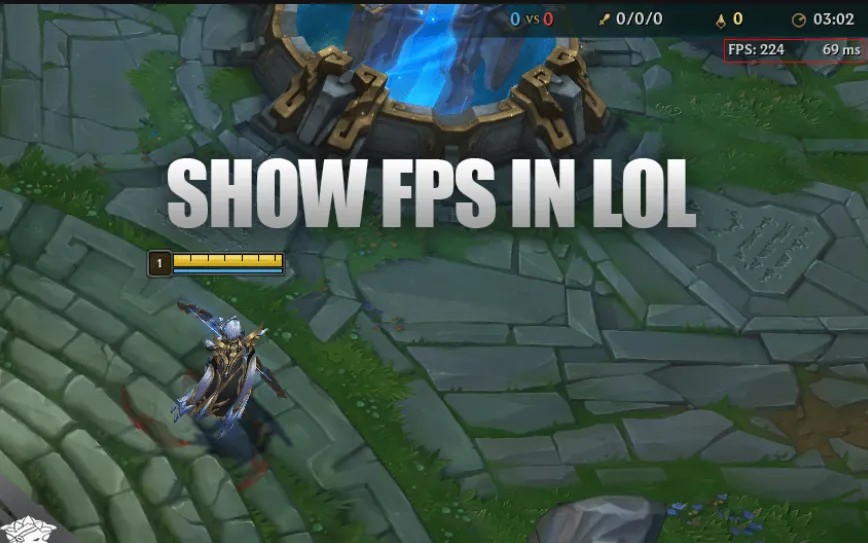
Before you change a single setting, read your own numbers. Press Ctrl+F in a League of Legends game and the client shows your latency and frame rate on screen. Those two values, plus packet loss and packet buffering, tell you which layer is actually broken: your PC, your home network, the route between your ISP and Riot, or the game server itself.
Table of Contents
ToggleMost lag guides hand you a list of ten fixes and hope one sticks. This guide does the opposite. First you measure, then you change exactly one layer, then you re-measure. Everything below is based on Riot’s published troubleshooting documentation and public technical sources, not on a paid test lab.
Read Your Own Numbers Before You Fix Anything
Riot’s client already ships the diagnostic you need. Press Ctrl+F in game to toggle the latency and FPS display; you can rebind it under Options → Hotkeys → Display → Toggle FPS Display.
Three network values matter, and Riot defines them clearly:
- Latency (ping) is the round trip time for data between your PC and the Riot game server, measured in milliseconds. Lower is better, and when your connection is otherwise healthy, physical distance to the server is the largest contributor.
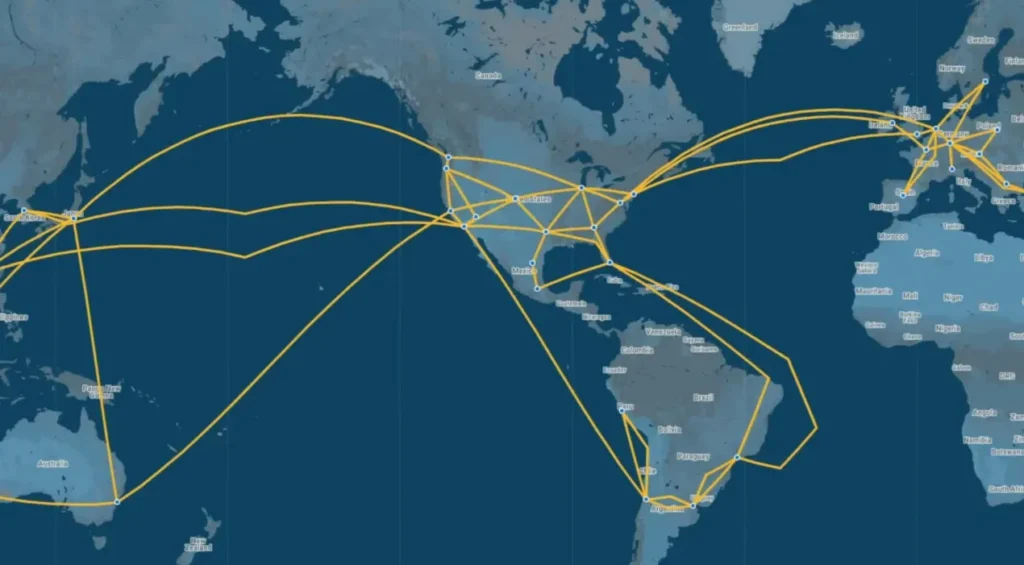
- Packet loss happens when data packets never arrive. Missing packets must be re-sent, and that delay shows up as lag. Riot’s target is as close to 0% as possible.
- Packet buffering rises when other software on your machine or network competes for bandwidth. Riot names Discord, Spotify, HD video streaming, torrent clients and active downloads as common causes.
Write the numbers down for three games. One bad game proves nothing, because a single teamfight, a Windows update or a roommate’s upload can distort it.
The Three-Signal Triage Table
Use this table to decide what to touch first. It maps what you see on screen to the layer that most likely owns the problem.
What the overlay shows
Layer that most likely owns it
First action
Stable ping, low FPS, choppy visuals
Your PC: graphics settings, drivers, thermals, overlays
Lower in-game settings and close capture or overlay apps
Stable but high ping, 0% loss
Distance and route to your region’s server
Confirm you play on your nearest region, then look at routing
Ping spikes with rubber-banding
Packet loss or jitter, usually local first
Move to Ethernet and stop background downloads
High packet buffering, normal ping
Bandwidth contention on your PC or LAN
Close streams, torrents and cloud sync, then retest
Abilities register late while ping looks fine
Short loss bursts or an indirect public route
Log three games and compare loss, not just ping
Notice the pattern. Low FPS makes the game look slow without your connection being late, while smooth visuals with delayed abilities point at the network. Treating both as one problem called “lag” is why so many fixes fail.
Why Distance Sets Your Ping Floor
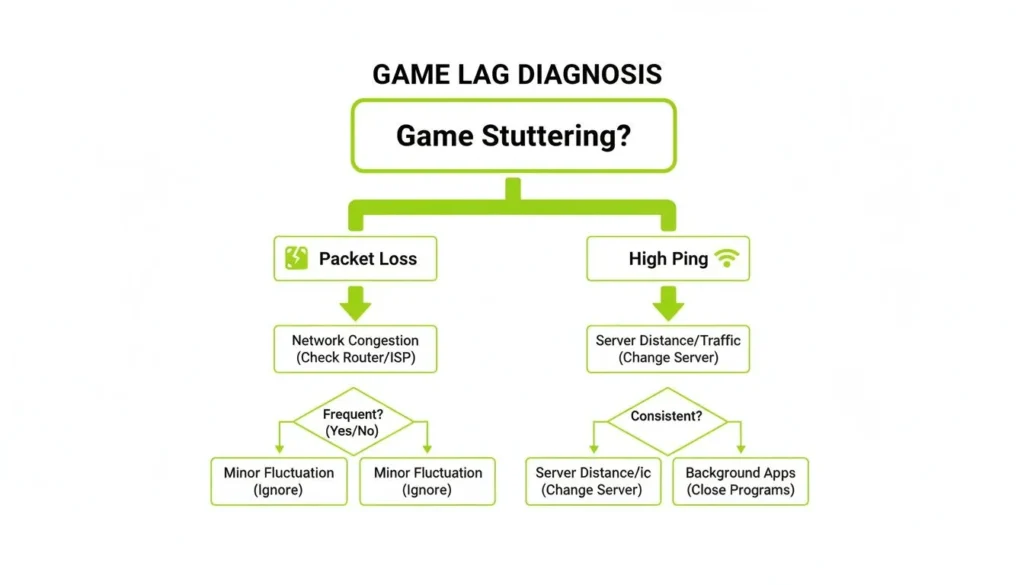
League is sharded into regional realms, and Riot operates its own backbone, Riot Direct, to carry player traffic toward those shards. Riot lists separate servers for regions including North America, Europe West, Europe Nordic & East, Oceania, Russia, Turkey, Brazil, Latin America North and Latin America South.
Two consequences follow, and both are easy to miss.
First, your region choice is tied to your account. To play in a different region you need an account associated with that region, and each server patches separately. So “just switch to a closer server” is not a setting you flip mid-queue; it is an account decision or a transfer.
Second, distance defines a floor, not a ceiling. If you sit far from your shard, no software removes the speed-of-light cost of that distance. What can still improve is everything above the floor: the number of hops, congested exchange points and unstable segments on the public path.
A practical reading of your baseline:
- Steady 20–60 ms with 0% loss: healthy for ranked play.
- Steady 100 ms+ with 0% loss: usually a distance or route issue, not a broken home network.
- Any sustained loss above roughly 1–2%: fix stability before you chase the ping number.
Rule Out Your Own Network First
Riot’s PC connection guide starts local, and that order is deliberate. Work through it before you buy anything.
- Switch to a wired connection. Riot recommends Ethernet whenever possible, because wireless interference commonly causes lag spikes and packet loss.
- Clear bandwidth competitors. Pause downloads, cloud sync, HD streams and torrent clients, since Riot lists exactly these as packet buffering culprits.
- Update your network adapter driver. Outdated drivers can cause connection problems on Windows.
- Test a public DNS. Riot documents switching to 8.8.8.8 and 8.8.4.4, then flushing DNS with
ipconfig /flushdns. - Check firewall and ports. Riot publishes the port ranges the client uses, including 5000–5500 UDP and 7000–8000 UDP for the game client.
- Compare a second network. If a phone hotspot in the same room behaves completely differently, your home link or router is involved.
One more point that saves money: Riot’s guide explicitly tells players not to use a VPN or proxy to connect to a game server, and says a VPN should only be used to test routing when a Riot technical specialist advises it. Keep that in mind whenever you read a “just use a VPN for lower ping” recommendation.
If several people on your network lag at the same time, or the issue appears on every device at once, suspect your router or ISP link rather than your PC. If teammates on the same region report normal play while only you struggle, the problem is closer to home.
My Speed Test Is Fine, So Why Am I Still Lagging?
Because a speed test measures throughput, and League does not need much of it. A match sends small, frequent updates that must arrive on time and in order. Riot’s own definitions focus on latency, loss and buffering rather than bandwidth.
That is why a 500 Mbps plan can still deliver rubber-banding while a modest 100 Mbps line feels crisp. The fast plan may travel a longer or busier path, or drop occasional packets at a congested hop. Judge your connection by distance, stability, jitter and loss before you judge it by download speed.
This is also the point where local fixes stop helping. If you are already on Ethernet, on your correct region, with nothing else using the line, and ping or loss still misbehaves during fights, then the remaining variable is the public route between your ISP and Riot’s network.
When a Game Booster Is the Right Tool
A game booster is route optimization software. Instead of your traffic taking whatever default path your ISP hands out, the client attempts to send game traffic over paths the vendor considers more stable. GearUP describes this as its “Adaptive Intelligent Routing” technology and offers a free Windows trial.
Be precise about what that can and cannot do. Routing software can only affect the path, so it may help with congestion, indirect routes and unstable segments. It cannot shorten physical distance, repair a failing Wi-Fi link, fix an overheating GPU or raise your frame rate. I have not independently benchmarked GearUP on League of Legends, and the vendor’s performance descriptions are marketing claims rather than verified results, so treat the trial as your own test rather than a promise.
It makes sense to try routing software when all of the following are true:
- Your local checks are already done and your FPS is fine.
- Your ping is high or spiky even though your home network is clean.
- Teammates on the same region report better stability than you do.
- You are willing to run a short before-and-after test rather than trust a marketing number.
The link below is an affiliate link — full disclosure at the bottom of this page.

Skip it if
- Your problem is low FPS, stutter or thermal throttling; that is a hardware and settings issue.
- Your Wi-Fi is unstable and you have not tried Ethernet yet.
- You are already on a nearby region with a steady 20–40 ms and 0% loss; there is very little headroom left.
- Your outages are total disconnects at fixed times, which usually means a line or router fault your ISP must fix.
- You want a guaranteed number. No routing product can promise a specific ping on your line, in your city, on your ISP.
Free alternatives deserve a mention too. Ethernet, a router restart, updated adapter drivers, closing background bandwidth users and a public DNS cost nothing and resolve a large share of everyday complaints. Try them first, because a booster on top of a broken local network mostly hides the symptom.
A 20-Minute Test Protocol That Proves It Either Way
Run this before you pay for anything. It removes the guesswork that makes lag debates endless.
- Fix your conditions. Same PC, same Ethernet cable, same region, same time window, nothing else downloading.
- Collect a baseline. Play three games with Ctrl+F on. Note average ping, worst spike and whether rubber-banding appeared, plus the date.
- Change one variable. Enable the booster and change nothing else.
- Collect the comparison. Play three more games and record the same three values.
- Judge stability, not the best moment. A route that lowers your worst spike from 220 ms to 90 ms matters more than an average that improves by 4 ms.
- Cancel or keep based on your log. If the numbers barely move, your bottleneck was never the route, and the trial has told you something useful for free.
Record conditions honestly, including country, ISP, region and patch. Results vary by network, location, time of day and game version, so your log is the only evidence that applies to you.
If your issue is local multiplayer rather than live servers, the four-layer LAN connection diagnostic walks through that path instead.
FAQ
What ping is good for League of Legends?
Lower is better, and Riot notes that distance to the server is the biggest factor when your connection is otherwise healthy. In practice, a steady 20–60 ms with 0% loss supports ranked play, while stability matters more than shaving off a few milliseconds.
How do I see my ping in game?
Press Ctrl+F to toggle the latency and FPS display, and rebind it under Options → Hotkeys → Display → Toggle FPS Display if you prefer another key.
Is packet loss worse than high ping?
Usually, yes, for feel. Lost packets must be retransmitted, which produces the delayed reactions and rubber-banding players describe as lag, so Riot asks players to keep loss near 0%.
Should I use a VPN to lower my League ping?
Riot’s PC connection guide tells players not to use a VPN or proxy to connect to a game server, and limits VPN use to routing tests advised by its technical specialists. Read any VPN-based ping advice against that documentation.
Can I just switch to a closer server?
Not with a single toggle. Playing in another region requires an account associated with that region, and each server patches separately, so this is an account or transfer decision.
Will a booster fix my low FPS?
No. Frame rate depends on your PC, settings, drivers and cooling. Network software changes how your traffic travels, not how fast your machine renders.
Verdict
Treat “lag” as three separate questions. If your FPS is low, fix the PC. If your ping spikes and loss climbs, fix your local network in Riot’s documented order: Ethernet, background bandwidth, drivers, DNS, firewall and ports. Only when those are clean and your numbers still misbehave does the public route become the prime suspect, and only then is routing software worth a trial.
The decision rule is simple. Measure three games, change one layer, measure three games again, and keep whatever your own log supports.
About the author
Velen Chen builds documented content and diagnostic workflows for gaming and software tools. This guide is based on Riot Games’ published support documentation and other public technical sources rather than a paid hardware lab; no personal benchmark of GearUP on League of Legends is claimed. Product claims are attributed to their source, and safety-, price- and policy-related statements were checked against primary pages on the date below.
Sources
- Riot Games – Smart Ping (Ctrl+F latency display and rebinding)
- Riot Games – Basic Connections Troubleshooting Guide (definitions of latency, packet loss and packet buffering)
- League of Legends Wiki – Servers (sharding and the Riot Direct network)
- Riot Games – League of Legends Regional Servers (region list, account and region relationship, per-server patching)
- Riot Games – Connection Troubleshooting Guide (PC) (wired connection, VPN and proxy guidance, DNS, drivers, firewall, ports)
- GearUP official site and supported-games pages (vendor claims, Windows free trial)
Last checked: 4 September 2026. Prices, plans, regions, client behavior and vendor features can change after this date.