
Affiliate disclosure: This guide contains affiliate links. If you buy through them, we may earn a commission at no extra cost to you. We only recommend tools we have actually tested, and the steps below are written so you can reproduce the result yourself.
The Steam Deck was never designed as an online-first machine, yet many people treat it like a laptop. That mismatch—not raw hardware weakness—is where most ‘Steam Deck lag’ complaints begin. Desktop-era fixes often do not exist on SteamOS or do not touch the part of the chain that is actually broken.
This guide separates network latency from performance stutter, explains three Deck-specific causes of high ping, and walks through a repeatable route-optimization setup with GearUP Booster.
Quick answer
- If ping spikes and packet loss appears repeatedly, suspect the route or Wi-Fi—not the GPU.
- Handheld posture can weaken reception more than people expect.
- SteamOS blocks most PC network utilities, so route optimization requires a plugin with explicit permission.
- A booster can improve route quality and stability. It does not raise FPS.
RECOMMENDED NEXT STEP
Test the route before changing hardware
GearUP Booster targets unstable routing, ping spikes and packet loss on Steam Deck. It does not increase FPS.
Step 1: Confirm it is actually latency
Open the in-game network stats and watch four signals for a few minutes of real play—not a download test.
Signal
What to look for
What it usually means
Signal
Ping
Ping
Look for
Sudden spikes, not just the average
Sudden spikes, not just the average
Meaning
Route instability or Wi-Fi interference
Route instability or Wi-Fi interference
Signal
Packet loss
Packet loss
Look for
Any repeated loss, even 1–2%
Any repeated loss, even 1–2%
Meaning
A stronger warning than slightly high ping
A stronger warning than slightly high ping
Signal
Jitter
Jitter
Look for
Ping jumping between values
Ping jumping between values
Meaning
An inconsistent or congested path
An inconsistent or congested path
Signal
In-game feel
In-game feel
Look for
Rubber-banding, delayed inputs, brief freezes
Rubber-banding, delayed inputs, brief freezes
Meaning
Compare behavior with the network readings
Compare behavior with the network readings
A stable ping with zero packet loss rarely points to a connection fault. If download speed is fast but gameplay is unstable, that gap is the diagnosis: throughput and latency are different problems.
If a speed test looks perfect but matches feel bad, stop testing throughput. Test the route.
Step 2: Rule out frame drops disguised as lag
A large share of ‘lag’ reports are actually performance issues. Use this 60-second check:
- Load a clearly offline scene—a menu, tutorial or training range.
- Watch for stutter. If it still stutters offline, it is a performance problem.
- Lower render resolution, enable FSR and cap the frame rate to a value the Deck can hold consistently.
- Keep the vents unobstructed; thermal throttling can mimic lag.
If offline play is clean and only online play breaks, the network is the real culprit.
Step 3: Understand the three Deck-specific causes
1. Antenna geometry and posture
The Deck is held, not placed. Palms can cover the antenna region, and the device often sits below the router’s line of sight. A 5 GHz connection is fast but loses strength through walls.
2. Background bandwidth you did not authorize
SteamOS can download updates, sync data and cloud saves while you play. On shared Wi-Fi, that traffic competes directly with real-time game packets.
3. SteamOS blocks conventional network tools
Most Windows and mobile optimization tools cannot run on SteamOS. Route optimization must be installed as a user plugin with manual permission.
Step 4: Set up GearUP Booster on SteamOS
What it changes: the network path between your Deck and the game server. It selects a cleaner route and avoids congested hops. It does not modify game files, CPU or GPU behavior.
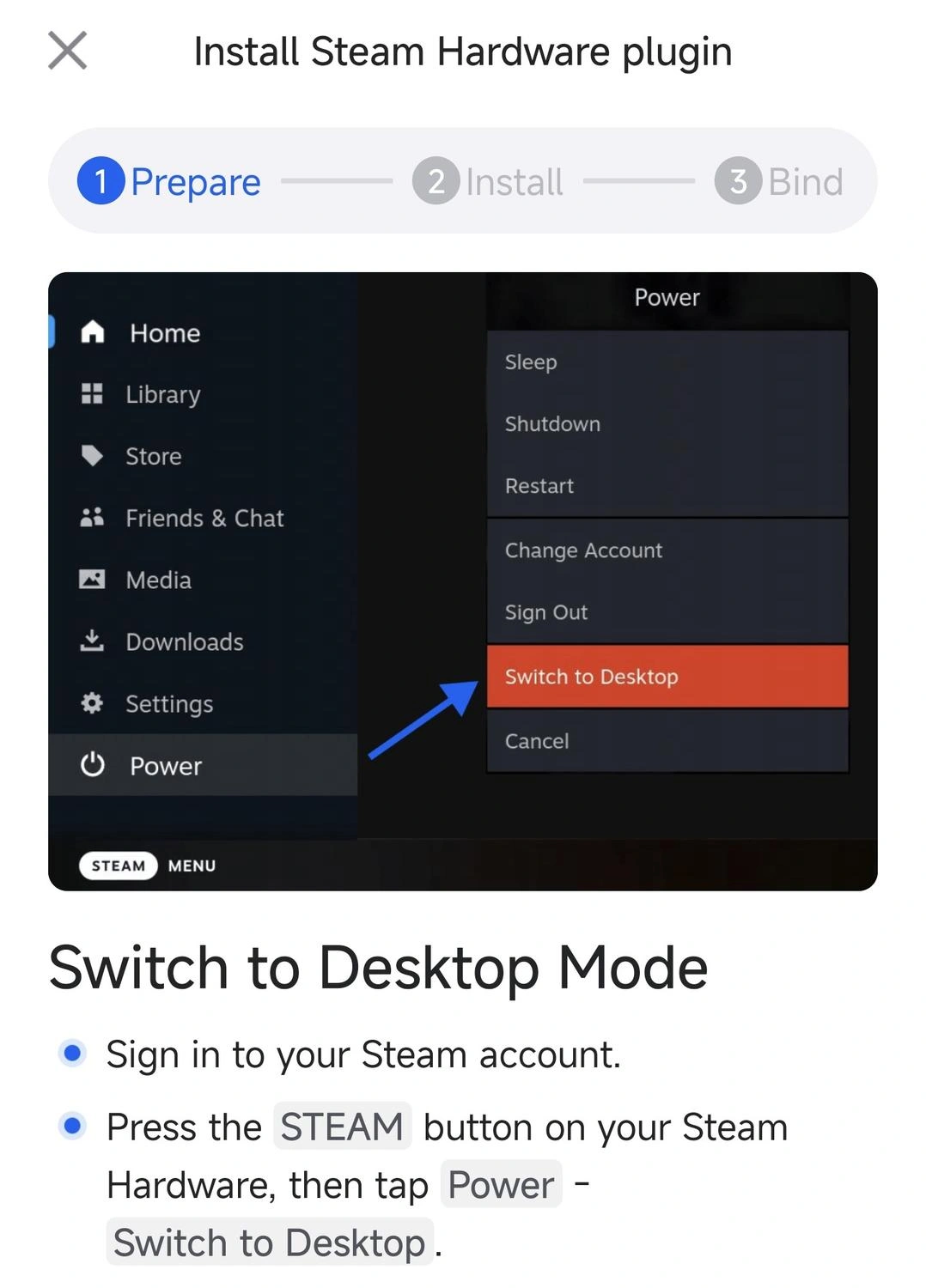
- Switch to Desktop Mode. Press STEAM → Power → Switch to Desktop.
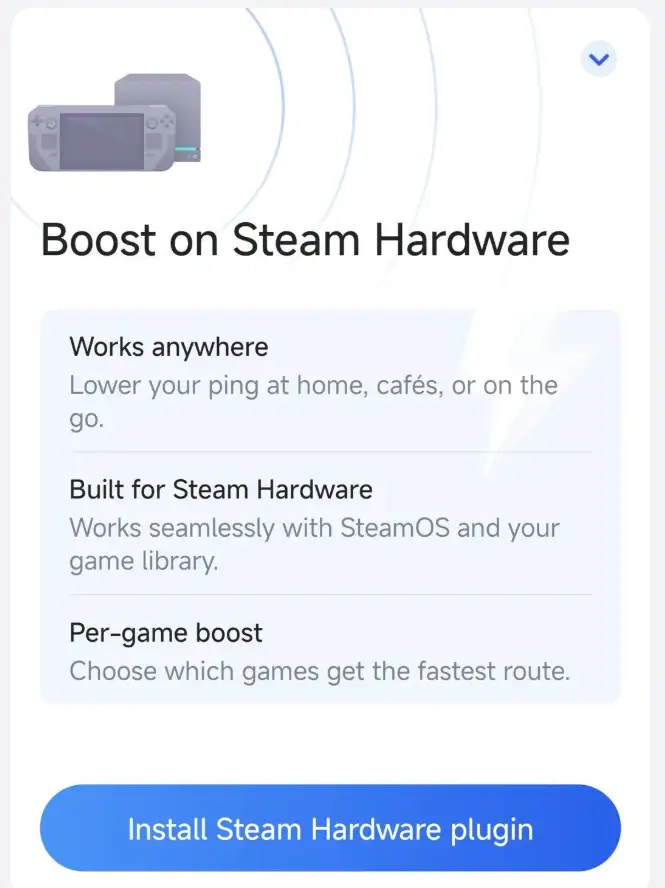
- Install the Steam hardware plugin. Follow Prepare → Install → Bind. The terminal step is normal.
- Pair the companion app. Complete plugin binding; this is a one-time setup.
- Test with a real match. Compare ping spikes and packet loss with your original baseline.
READY TO TEST IT?
Start with GearUP Booster on Steam Deck
Install the plugin, optimize one game and compare ping and packet loss against your original baseline.
Step 5: Fix the environment the booster cannot fix
- Server region: choose the geographically closest server.
- Docked vs handheld: docking removes antenna variables but does not automatically improve the route.
- Peak hours: hotel, dorm and café networks often degrade in the evening.
- Router distance: move closer or switch to a less crowded channel before buying anything.
Frequently asked questions
Does the plugin cost performance?
No. It works at the network layer and does not compete with the game for CPU or GPU time.
Does it work in docked mode?
Yes. It treats the route the same whether the Deck is docked or handheld.
Can I skip the terminal step?
No. SteamOS requires manual permission for user plugins by design.
Will it help if my ping is already low and stable?
Probably not much. Boosters improve bad routes and packet loss; they cannot change physical distance.
Does every Steam Deck need it?
No. Clean home networks usually see the smallest gain. Shared, public and long-distance connections may benefit more.
Verdict
Steam Deck latency is usually a chain problem: posture → local Wi-Fi → background traffic → route → server region. Diagnose in that order and only pay for the layer you cannot fix manually. If ping spikes and packet loss persist after tuning posture, channel and server region, route optimization is the remaining lever.
FINAL RECOMMENDATION
Fix the route, not the hardware
Run the same ping and packet-loss test before and after. If routing is the bottleneck, you should see the difference during real play.